Showing posts with label gameplay. Show all posts

Tuesday, August 5, 2008

Pausing/Unpausing Game Physics


The video above demonstrates the superfluous technique of pausing the game's physics engine. You can pause/unpause physics by hitting spacebar, clicking the play/pause icon in the bottom right, or by clicking the center mouse button (mousewheel). This function is only required to solve 5 of the final puzzles in the game and can make some puzzles easier. It is primarily included because some people prefer to set everything up and then play it out; plus it is a pretty fun function to experiment with.

Monday, August 4, 2008

Actions


Your actions are tallied as you play a puzzle. You want to try to solve each puzzle in as few actions as possible.

What counts as an action?
- Placing a Toy
- Picking up a Toy
- Activating Toy Abilities

In the example video above, there are 3 actions: placing the dart gun, firing a dart, and launching the rocket.

Friday, August 1, 2008

Puzzle Solving & Physics.

In order to solve the puzzles in Red Faction you will have to take into account 2 thing:

- Toy Physics
- Toy Abilities

As you play through the Magic Toy Chest, you will learn more about each toy, it's abilities, weight, and shape. Each level can be solved by correctly building paths, using toys' abilities, or using physics to manipulate toys and objects. Take a look at the video below to get an idea of a puzzle solution.


The goal in the video is to get the alphabet blocks into the toy chest. Obviously, a Bowling Ball has a lot of weight to it and will roll. By rolling the bowling ball into the blocks, the blocks tumble into the chest, completing your goal.

The final tip I can give you about puzzle solving is to take note of the level description and hint. The Level Hints will usually help get you in the right direction and will highlight the toy that the solution usually revolves around. Make sure to play through all the Tutorial Levels too, since the later levels highlight each toy and how it works.

Thursday, July 31, 2008

Level Failure

There are only 2 ways that you can fail a level in the Magic Toy Chest:

1. By exceeding the level's time limit
2. By losing enough of the goal toys, making it impossible to reach your goal.

When the Level Failure prompt appears, press the 'R' Key to Restart the level.

In many cases, a Player will make mistakes and potentially get their goal toys stuck or use their available tools in an incorrect manner. Unfortunately, the game cannot detect this as Level Failure. If you get stuck for too long, make a mistake, etc. remember that you can press 'R' at any time to restart the Level.

Wednesday, July 30, 2008

Opening the Toy Chest

Before you can put away any of your toys, the Magic Toy Chest must be opened. Find and click on all the toy chest keys. When there are no more keys, click on the toy chest to open it. If you have missed a key, clicking on the toy chest will do nothing.

The top of the toy chest can be manipulated by physics, so be wary that the Gravity Robot, Balloons, and or the Dart Gun can remove the toy chest lid. In many cases, this lid can interfere with the chore at hand.

Level Objective

The Goal of each level is to put away a specified amount of a certain toy within the Level's time limit. This goal toy is displayed in the upper right corner. The level is completed when the adequate number of goal toys have been returned to the toy chest. When the goal toys fall into the chest, they will automatically disappear and the goal amount will decrease. When this goal amount reaches Zero, the Chore is complete!

Thursday, July 24, 2008

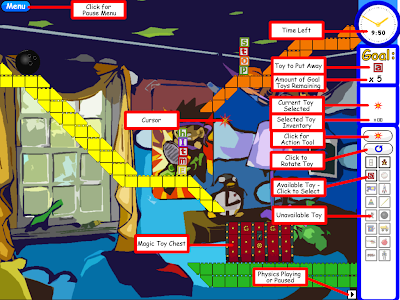
Gameplay Expained: Menus/Toy Toolbox etc.

(click on the above picture to view full screen)
The image above briefly explains many of the menu and game objects in The Magic Toy Chest.
Menu Button (top left corner) - Click this button (or press ESC) to access the Pause Menu
Explanations of Menu Bar (right hand side)from Top to Bottom:
Time Left - This counter displays how much time left you have before you exceed the level's time limit and fail the level.
Goal Toy - This displays the goal toy that you need to get into the Toy Chest
Goal Toy Remaining- the number below indicates how many more of the goal toys you need to get to the Magic Toy Chest to complete the level
Current Toy Selected - This displays the current toy/tool that you have selected. your cursor will also change to the toy you have selected.
Selected Toy Inventory - This number reflects how many of the selected toy you have remaining to use. If the action tool is selected, this number reflects the number of actions you have taken in the level so far.
Action Tool Button - click this button to select the action tool
Rotate Toy Button - click this button to rotate the selected toy
Available Toy Button - if you have a certain toy in your inventory the button will become active. Click an available toy's button to select that toy.
Unavailable Toy Button - if you have no inventory of a certain toy, that toy's button will become inactive and unavailable.
Physics Pause/Play Indicator - this indicator shows you whether or not you have the game's physics playing or not. You can Toggle the world's physics to play/pause by pressing spacebar or clicking the middle mouse button. This indicator displays the current state.

Friday, May 23, 2008

Opening the Toy Chest

In many cases, the first step in every level should be to open the magic toy chest. The toy chest can only be opened by collecting all the keys in the level or using the physics and gameplay mechanics to move the toy chest's lid. To collect a key, simply left click it. When there are no more keys left in the level, you will be able to open the toy chest by left clicking on it as well. In later levels, there are sometimes a ton of keys to collect. Remember that the toy lid can easily be shot off with a dart gun, or altered with gravity instead.

Friday, May 16, 2008

Gameplay Controls:

Mouse Movement - controls/moves your pointer

Left Mouse Button:

  • Left click on an available toy in your toolbox to select that toy
  • Left click on the rotate button to rotate your selected toy
  • Left click in the game playfield to drop/create your selected toy
  • Left click on keys to collect them
  • Left click on the magic toy chest to open it (when all keys collected)
  • Left click on a toy (with action button selected) to activate a toy

Right Mouse Button - Right click on an unlocked toy to return it to your toolbox (also selects picked up toy)

Mouse Wheel: - move the wheel up/down to add/subtract cars to the toy train before you place it

Arrow Keys - press an arrow key to adjust the orientation of your selected toy before you place it

'R' - Key - Reloads/Restarts a Level

'S' - Key - Skips to Next Level

ESC - Opens Pause Menu

Spacebar/ 'P' - Key / Middle Mouse Button Click - Toggles Pause/Play - Freezes/Unfreezes Physics

Enter - Quick Selects the Action Tool